
Memory in Computers (RAM, ROM, Cache): Types
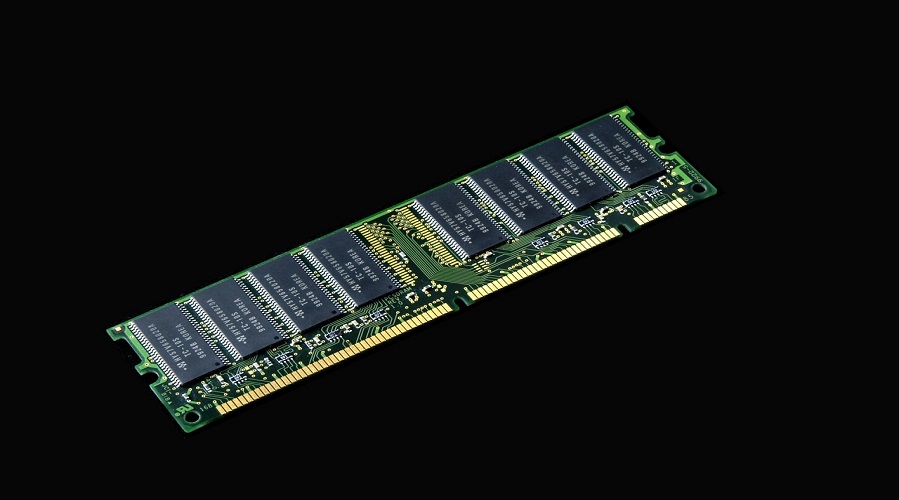
Memory (RAM, ROM, Cache):
Memory is one of the most essential components of any computer system. Without memory, a computer cannot store data, run applications, load the operating system, or perform any instructions. Whether you use a mobile, laptop, desktop, tablet, or server, every device uses memory to execute tasks.
What Is Memory in a Computer?
Memory is the hardware component of a computer that stores data, files, instructions, and programs either temporarily or permanently.
In simple words:
Memory is where your computer stores the information it needs to work.
Memory is divided into two categories:
- Primary Memory (Internal Memory)
- Secondary Memory (External Storage)
This article covers the primary memory:
- RAM
- ROM
- Cache Memory
RAM (Random Access Memory)
What is RAM?
RAM stands for Random Access Memory, a temporary and high-speed memory used by the CPU to store data that is currently being processed.
RAM is volatile, meaning data is lost when the device is powered off.
Examples of RAM usage:
- Opening apps
- Running operating systems
- Browsing the internet
- Playing games
- Editing videos or documents
Everything you do on a computer temporarily occupies RAM.
Why is RAM Important?
RAM improves:
- Speed of the computer
- Performance and responsiveness
- Multitasking capability
- Loading and execution speed
More RAM = Faster device.
Types of RAM
There are two main types:
1. DRAM (Dynamic RAM)
- Stores data using capacitors
- Needs constant refreshing
- Slower but cheaper
- Used in standard PC RAM (DDR4, DDR5)
2. SRAM (Static RAM)
- Uses flip-flop circuits
- Does not need refreshing
- Faster and expensive
- Used in Cache Memory
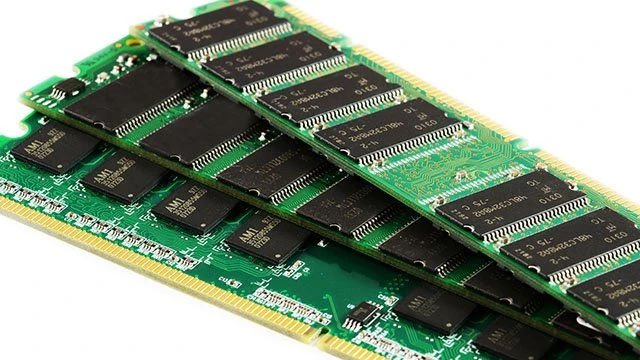
Generations of RAM (DDR Memory)
| Version | Speed | Power Efficiency | Usage |
|---|---|---|---|
| DDR1 | Slow | High power | Very old PCs |
| DDR2 | Improved | Lower power | Old systems |
| DDR3 | Fast | Efficient | Budget PCs |
| DDR4 | Very fast | Good efficiency | Modern PCs |
| DDR5 | Latest, fastest | Best efficiency | High-end PCs & gaming rigs |
DDR5 RAM offers higher bandwidth and double the speed of DDR4.
Sizes of RAM
Common RAM sizes:
- 2 GB (Low-end)
- 4 GB (Basic)
- 8 GB (Standard)
- 16 GB (Professional)
- 32 GB (Gaming, editing)
- 64 GB+ (Workstations)
Functions of RAM
- Stores currently running programs
- Helps the CPU access data faster
- Loads the operating system
- Enables smooth multitasking
- Improves system performance
How RAM Works
- When you start a program, → It loads from storage (SSD/HDD) into RAM
- CPU accesses data from RAM instantly
- RAM temporarily stores data until the task is completed
- When the device is turned off → Data is erased
ROM (Read-Only Memory)
What is ROM?
ROM stands for Read-Only Memory. It is non-volatile, meaning it permanently stores essential data even when the computer is turned off.
ROM contains:
- Firmware
- BIOS
- Boot instructions
- System startup programs
Why is ROM Important?
ROM stores permanent instructions required for starting the computer.
Example:
When you press the power button, the BIOS stored in ROM loads the operating system.
Types of ROM
1. MROM (Masked ROM)
- Permanent memory is written during manufacturing
- Not rewritable
- Used in old devices
2. PROM (Programmable ROM)
- Can be programmed once
- Used in embedded systems
3. EPROM (Erasable PROM)
- Rewritable using UV light
- Used in research systems
4. EEPROM (Electrically Erasable PROM)
- Can be erased electrically
- Used in BIOS & firmware
5. Flash Memory
- Modern, fast ROM
- Used in:
- USB drives
- SSDs
- Memory cards
- Mobile phone firmware
Functions of ROM
- Stores permanent instructions
- Controls basic hardware functions
- Executes the bootstrap loader
- Initializes system hardware
Differences Between RAM and ROM
| Feature | RAM | ROM |
|---|---|---|
| Volatility | Volatile | Non-volatile |
| Storage | Temporary | Permanent |
| Speed | Fast | Slow |
| Purpose | Stores running programs | Stores boot/programming data |
| Modifiable | Yes | Not easily |
Cache Memory
What is Cache Memory?
Cache Memory is a small, high-speed memory located inside or near the CPU.
It stores frequently accessed data and instructions to speed up processing.
Cache is faster than RAM but smaller in size.
Why Cache Memory Is Important
- Reduces CPU data access time
- Increases overall system performance
- Helps with the fast execution of instructions
- Improves application load time
Types of Cache Memory
Cache is divided into three levels:
1. L1 Cache (Level 1)
- Smallest and fastest
- Located inside the CPU
- Few KB to few MB
2. L2 Cache (Level 2)
- Larger but slightly slower
- Shared by cores
3. L3 Cache (Level 3)
- Largest
- Shared by all CPU cores
- Slower than L1 and L2 but faster than RAM
Cache Memory vs RAM
| Feature | Cache | RAM |
|---|---|---|
| Speed | Faster | Slower |
| Size | Smaller | Larger |
| Location | Inside CPU | On motherboard |
| Function | Speeds up CPU tasks | Runs programs |
Memory Hierarchy in Computers
Memory hierarchy represents how different types of memory are organized by speed:
- Registers (fastest)
- Cache Memory
- RAM
- Secondary Storage (SSD, HDD) — slowest
The higher the memory in the hierarchy, the faster and more expensive it is.
Primary vs Secondary Memory
Primary Memory
- RAM and ROM
- Fast
- Directly accessed by the CPU
Secondary Memory
- Hard Disk
- SSD
- Pen drive
- Memory card
Used for long-term storage.
Many people confuse memory with storage.
| Memory (RAM) | Storage (SSD, HDD) |
|---|---|
| Temporary | Permanent |
| Faster | Slower |
| Used for running programs | Used for storing files |
| Volatile | Non-volatile |
Factors That Affect Memory Performance
- Clock speed
- Memory latency
- Memory bandwidth
- Number of channels (single, dual, quad)
- DDR generation (DDR3, DDR4, DDR5)
- Cache levels
Applications of RAM, ROM & Cache
RAM is used in:
- Browsers
- Games
- Video editing apps
- Operating system
- Coding environments
- Software applications
ROM is used in:
- BIOS
- Firmware
- Embedded systems
- Mobile OS storage
Cache is used in:
- CPU operations
- Frequently accessed data storage
- Fast execution of instructions
Advantages of RAM, ROM & Cache
RAM Advantages
- Improves speed
- Helps multitasking
- Runs heavy applications
ROM Advantages
- Permanent data storage
- Essential for booting
- Cannot be erased accidentally
Cache Advantages
- Very fast
- Saves CPU time
- Boosts application performance
1. What is RAM in simple words?
RAM is temporary memory used to run programs and apps.
2. What is ROM used for?
ROM stores permanent instructions needed to boot and operate the system
3. Is cache part of RAM?
No. Cache is faster than RAM and is located inside the CPU.
4. Which is faster, RAM or Cache?
Cache memory is faster.
5. What are examples of ROM?
BIOS, firmware, and bootloader.
6. Can a computer run without RAM?
No, the operating system cannot load without RAM.
7. How much RAM is recommended for gaming?
At least 16 GB for modern games.
8. Which is better: DDR4 or DDR5?
DDR5 is faster, more efficient, and better for future systems.
9. What is EEPROM?
EEPROM is a rewritable ROM used in BIOS storage.
10. Does RAM improve gaming?
Yes, more RAM improves loading times and reduces lag.
Conclusion
Memory plays a crucial role in the performance, speed, and reliability of a computer system. RAM allows smooth multitasking, ROM ensures proper system boot, and Cache Memory accelerates CPU tasks. Understanding how RAM, ROM, and Cache work helps you make better decisions when buying or upgrading a computer or smartphone.
Leave a Comment
Your email address will not be published. Required fields are marked *
Related Post
Git & GitHub Version Control Tutorial for Beginners
Learn Git & GitHub Version Control with this complete beginner-to-advanced guide. Understand Git commands, repositories, branching, merging,
CI/CD Pipelines Complete Guide – Continuous Integration
Learn everything about CI/CD Pipelines in this complete guide. Understand Continuous Integration, Continuous Deployment.
DevOps: Ultimate Guide to DevOps Practices, Tools
Explore the complete DevOps guide for 2026. Learn DevOps practices, tools, benefits, CI/CD pipelines, automation, culture, and more.
What is Cloud Platforms? Types, Benefits
Learn everything about Cloud Platforms. Understand cloud computing platforms, types, benefits, services, use cases, security, and future trends.
Encryption: Types, Algorithms, Security and Data Encryption
Learn everything about Encryption in this complete guide. Understand what encryption is, types of encryption, algorithms, advantages, data security.
Ethical Hacking: Complete Guide, Tools, Techniques
Learn Ethical Hacking in this complete guide. Understand ethical hackers, types, tools, techniques, and cybersecurity best practices.
Network Security and Firewalls – Types, Architecture
Learn Network Security & Firewalls in detail. This complete guide covers concepts, types of firewalls, architecture, security threats, and more.
Network Routing and Switching – Types, Protocols & Working
Learn everything about Network Routing and Switching. Understand concepts, types, protocols, devices, differences, advantages, and more.
IP Addressing - IPv4, IPv6, Working, Types, Structure, Security
Internet Protocol (IP) is the foundation of the internet. Learn everything about IP, including IPv4, IPv6, IP addressing, packet delivery, and more.
Transmission Control Protocol (TCP) - Working, Features, Use
Learn everything about Transmission Control Protocol (TCP) in this complete SEO-friendly guide. Understand TCP definition, and more.