
Web Browser: Types, Features
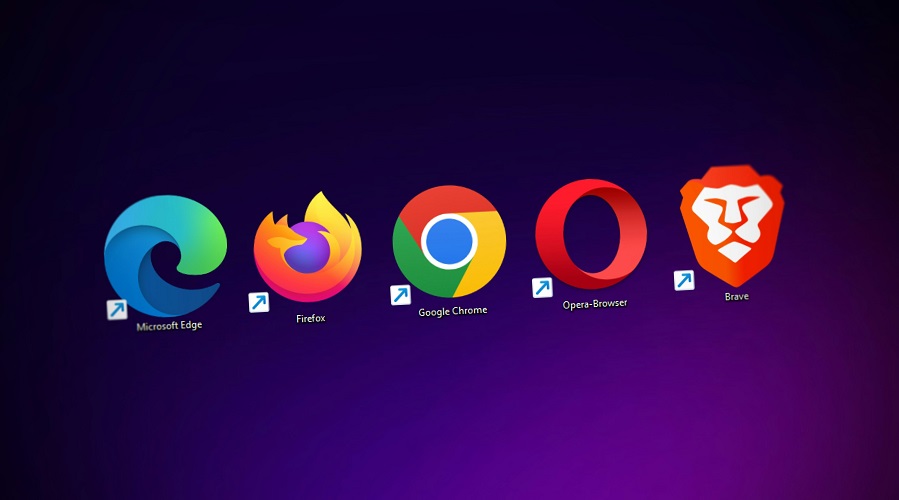
Introduction to Web Browsers
A Web Browser is one of the most important software applications used on computers, laptops, and smartphones. It is the gateway to the Internet and allows users to access websites, view multimedia, download files, and interact with online services. Whether you use Google Chrome, Firefox, Microsoft Edge, or Safari, each of them is a web browser.
In today’s digital world, browsing has become a daily routine. From online shopping to news reading, banking to entertainment, everything is possible using a browser. This comprehensive article covers everything about web browsers, including their history, working, types, components, and security.
Origin of Web Browsers
The origin of web browsers is closely linked with the birth of the World Wide Web itself. Without web browsers, the Internet would not be accessible to ordinary people. The early web was text-based, academic, and limited—until the invention of the first browser changed everything.
What is a Web Browser?
A Web Browser is a software application that retrieves, displays, and navigates information on the World Wide Web. It converts code (HTML, CSS, JavaScript) into readable content like text, images, videos, and interactive elements.
Simple Definition:
A Web Browser is a program used to open and view websites on the internet.
Technical Definition:
A browser is a client-side software that sends HTTP/HTTPS requests to servers, receives responses, processes the code, and displays the result to the user.
Examples of Web Browsers:
- Google Chrome
- Mozilla Firefox
- Microsoft Edge
- Apple Safari
- Opera
- Brave Browser
- Tor Browser
History of Web Browsers
The evolution of browsers changed the Internet forever. Here is a timeline:
- 1990 – World Wide Web: First browser created by Tim Berners-Lee
- 1993 – Mosaic: Introduced images and graphics
- 1994 – Netscape Navigator: Most popular browser of the early Internet
- 1995 – Internet Explorer: Dominated for more than a decade
- 2003 – Safari: Apple’s default browser
- 2004 – Firefox: Open-source competitor
- 2008 – Google Chrome: Became the fastest and most widely used
- 2015 – Microsoft Edge: Successor to Internet Explorer
Today, Chrome is the global market leader.
How Does a Web Browser Work? (Step-by-Step Process)
Browsers follow a multi-step process to load and display a website.
1. User Enters URL
When the user types a URL in the address bar, the browser identifies the website location.
2. DNS Lookup
DNS translates a domain name (example: google.com) into an IP address.
3. Sending HTTP/HTTPS Request
The browser sends a request to the website's server.
4. Server Response
Server sends:
- HTML
- CSS
- JavaScript
- Images
- Content files
5. Rendering Engine Processes Data
The Rendering Engine reads and interprets the code.
6. Web Page Displayed
The browser displays a fully formatted, interactive web page.
Components of a Web Browser
A browser includes many internal parts:
1. User Interface (UI)
Visible elements such as:
- Address bar
- Back/forward buttons
- Refresh & home buttons
- Tabs
2. Browser Engine
Links the UI with the rendering engine.
3. Rendering Engine
Responsible for displaying content.
Examples:
- Blink (Chrome, Edge)
- WebKit (Safari)
- Gecko (Firefox)
4. Networking Component
Handles communication using HTTP, HTTPS, and FTP protocols.
5. JavaScript Engine
Executes JavaScript code.
Popular JS engines:
- V8 (Chrome, Edge)
- SpiderMonkey (Firefox)
- JavaScriptCore (Safari)
6. Data Storage
Stores:
- Cache
- Cookies
- History
- Local storage
- Session storage
Main Functions of a Web Browser
1. Access & Display Web Pages
Primary function: converts code into visible content.
2. Navigation
Back, forward, refresh, stop.
3. Download Management
Manages file download/upload.
4. Bookmarking
Save pages for quick access.
5. Privacy Browsing Mode (Incognito)
Does not save history or cookies.
6. Extensions & Add-ons
Add extra features like:
- Ad Blocker
- VPN
- Password Manager
7. Security Management
Warns about unsafe websites.
Important Features of Modern Web Browsers
1. Speed
Fast loading and smooth performance.
2. User-Friendly Interface
Easy navigation, clean layout.
3. Cross-Platform Compatibility
Available for Windows, macOS, Linux, Android, and iOS.
4. Security Features
- SSL certificate check
- Malware protection
- Site isolation
5. Real-Time Sync
Syncs:
- History
- Bookmarks
- Saved passwords
- Extensions
6. Offline Browsing
Some browsers allow saving pages for offline use.
Types of Web Browsers
1. Graphical Web Browsers
Display multimedia content.
Example: Chrome, Edge, Firefox.
2. Text-Based Browsers
Show only text.
Example: Lynx.
3. Mobile Browsers
Optimized for mobile screens:
- Chrome Mobile
- Safari iOS
4. Secure & Privacy-Focused Browsers
Provide strong privacy controls:
- Brave
- Tor Browser
5. Lightweight Browsers
Use less RAM; suitable for slow devices.
6. Specialized Browsers
Built for particular industries or tasks.
Popular Web Browsers (Detailed Overview)
1. Google Chrome
- Fastest
- Large extension library
- Sync feature
- Most widely used
2. Mozilla Firefox
- Open-source
- Strong privacy
- Customizable interface
3. Microsoft Edge
- Based on Chromium
- Lightweight
- Fast performance
4. Apple Safari
- Default browser for Apple devices
- Battery-efficient
5. Opera
- Built-in VPN
- Speed dial
- Free ad blocker
6. Brave Browser
- Blocks ads & trackers
- Very fast
- Crypto-friendly
Browser Security Features
1. HTTPS Encryption
Ensures secure communication.
2. Secure DNS
Protects from DNS hijacking.
3. Site Isolation
Keeps each website in a separate process.
4. Blocking Harmful Content
Warns about:
- Phishing sites
- Malware injections
5. Sandboxing
Prevents harmful code from accessing system files.
Private Browsing Mode (Incognito Mode)
Used to browse without saving:
- History
- Cache
- Cookies
- Search queries
It does NOT hide:
- IP address
- Activity from ISP
- Activity from websites
For full anonymity, use:
- VPN
- Tor Browser
Browser Cache and Cookies
Browser Cache
Stores frequently use files for faster loading.
Cookies
Small files that store user preferences, login details, and tracking information.
Why Clear Cache and Cookies?
- Fix loading issues
- Improve speed
- Protect privacy
Rendering Engines Explained
Rendering engines interpret HTML/CSS:
Blink
Used in Chrome, Edge, and Opera.
WebKit
Used in Safari.
Gecko
Used in Firefox.
How Rendering Engines Work:
- Parse HTML
- Apply CSS
- Process JavaScript
- Layout elements
- Display the webpage
Difference Between Web Browser and Web Server
| Web Browser | Web Server |
|---|---|
| Client software | Stores and serves web pages |
| Displays websites | Processes requests |
| Runs on user device | Runs on server machines |
| Examples: Chrome | Examples: Apache, Nginx |
Difference Between Web Browser and Search Engine
| Browser | Search Engine |
|---|---|
| Opens websites | Finds websites |
| Needs URL | Needs keyword |
| Example: Chrome | Example: Google |
Importance of Web Browsers in Daily Life
- Accessing websites
- Online learning
- Online banking
- Shopping & payment
- Entertainment
- Social media
- Web development
- Business operations
Future of Web Browsers
The next generation of browsers will include:
- AI-powered assistance
- Voice-based browsing
- Ultra-fast loading
- More privacy tools
- Cloud-based browsing
- AR/VR web experience
1. What is a web browser?
A web browser is a software used to access and view websites on the internet.
2. What is the first web browser in the world?
The first browser was WorldWideWeb, created in 1990.
3. Which browser is the fastest?
Google Chrome is considered one of the fastest.
4. Is Google a browser?
No, Google is a search engine. Google Chrome is the browser.
5. Which browser is best for privacy?
Brave and Tor Browser.
6. What is a rendering engine?
A system that converts code into a visual webpage.
7. What is incognito mode?
A private browsing mode that doesn’t save browsing history.
8. What is browser cache?
A storage area for temporary files to speed up websites.
9. What is a browser extension?
A plugin that adds more features to a browser.
10. What is the difference between a browser and a search engine?
The browser opens websites; the search engine finds websites.
11. Can browsers store passwords?
Yes, most browsers have built-in password managers.
12. Why do browsers show “Not Secure”?
Because the site does not use HTTPS encryption.
13. How often should I clear the cache?
Once every 10–15 days or when pages don’t load correctly.
14. Which browser consumes less RAM?
Firefox and Edge are more lightweight compared to Chrome.
15. What is a bookmark?
A feature to save website links for later use.
16. Are all browsers free?
Yes, most popular browsers are completely free.
17. Which browser is best for Android?
Chrome, Brave, Firefox, Opera.
Conclusion
Web browsers are the backbone of the Internet. Without browsers, we cannot access websites, watch videos, read news, or perform online tasks. From Chrome to Firefox, Safari to Edge, every browser has its unique strengths. Understanding how browsers work, their types, features, security, and importance helps users make better decisions and improve productivity.
Leave a Comment
Your email address will not be published. Required fields are marked *
Related Post
Git & GitHub Version Control Tutorial for Beginners
Learn Git & GitHub Version Control with this complete beginner-to-advanced guide. Understand Git commands, repositories, branching, merging,
CI/CD Pipelines Complete Guide – Continuous Integration
Learn everything about CI/CD Pipelines in this complete guide. Understand Continuous Integration, Continuous Deployment.
DevOps: Ultimate Guide to DevOps Practices, Tools
Explore the complete DevOps guide for 2026. Learn DevOps practices, tools, benefits, CI/CD pipelines, automation, culture, and more.
What is Cloud Platforms? Types, Benefits
Learn everything about Cloud Platforms. Understand cloud computing platforms, types, benefits, services, use cases, security, and future trends.
Encryption: Types, Algorithms, Security and Data Encryption
Learn everything about Encryption in this complete guide. Understand what encryption is, types of encryption, algorithms, advantages, data security.
Ethical Hacking: Complete Guide, Tools, Techniques
Learn Ethical Hacking in this complete guide. Understand ethical hackers, types, tools, techniques, and cybersecurity best practices.
Network Security and Firewalls – Types, Architecture
Learn Network Security & Firewalls in detail. This complete guide covers concepts, types of firewalls, architecture, security threats, and more.
Network Routing and Switching – Types, Protocols & Working
Learn everything about Network Routing and Switching. Understand concepts, types, protocols, devices, differences, advantages, and more.
IP Addressing - IPv4, IPv6, Working, Types, Structure, Security
Internet Protocol (IP) is the foundation of the internet. Learn everything about IP, including IPv4, IPv6, IP addressing, packet delivery, and more.
Transmission Control Protocol (TCP) - Working, Features, Use
Learn everything about Transmission Control Protocol (TCP) in this complete SEO-friendly guide. Understand TCP definition, and more.